
What is WooCommerce automation?
WooCommerce automation means your store does the repetitive work for you. When something happens, such as a new order, a refund, a customer adding a product to their cart or a new account, a rule runs and updates the tools you already use: your CRM, your email list, your spreadsheet, your team chat. Nobody copies and pastes anything.
Every automation is built from the same three parts, and that is how the plugin in this guide shows them too:
- When (the trigger): an event in your store, for example "order completed".
- Only if (the conditions): optional filters, for example "order total is over $100" or "this is the customer's first order".
- Then do (the actions): what should happen, for example "add the tag
vip_customerin GoHighLevel and log the order to a Google Sheet".
People search for this in many ways: WooCommerce workflow automation, automate WooCommerce orders, WooCommerce CRM integration, WooCommerce email marketing automation, or the specific tool they use, like connect WooCommerce to GoHighLevel or send WooCommerce orders to Google Sheets. They all describe the same idea, and this guide covers each of them with practical, step by step examples.
Why automate your WooCommerce store?
A store with a handful of orders a week can get by with manual work. Once you have real traffic, the manual steps start to cost you money:
- Leads go cold. A customer who bought yesterday but is not in your CRM today never gets your follow up.
- Mistakes creep in. Copying order details into a spreadsheet by hand means typos, missed rows and wrong totals.
- Your team reacts late. If nobody is told about a big order or a refund, the problem is found days later.
- You cannot segment. Without tags such as "first order", "VIP" or "refunded", every email goes to everyone.
Automation fixes all four, and it does it the same way every time, at any order volume.
The free WooCommerce automation plugin: DuoFlow for WooCommerce
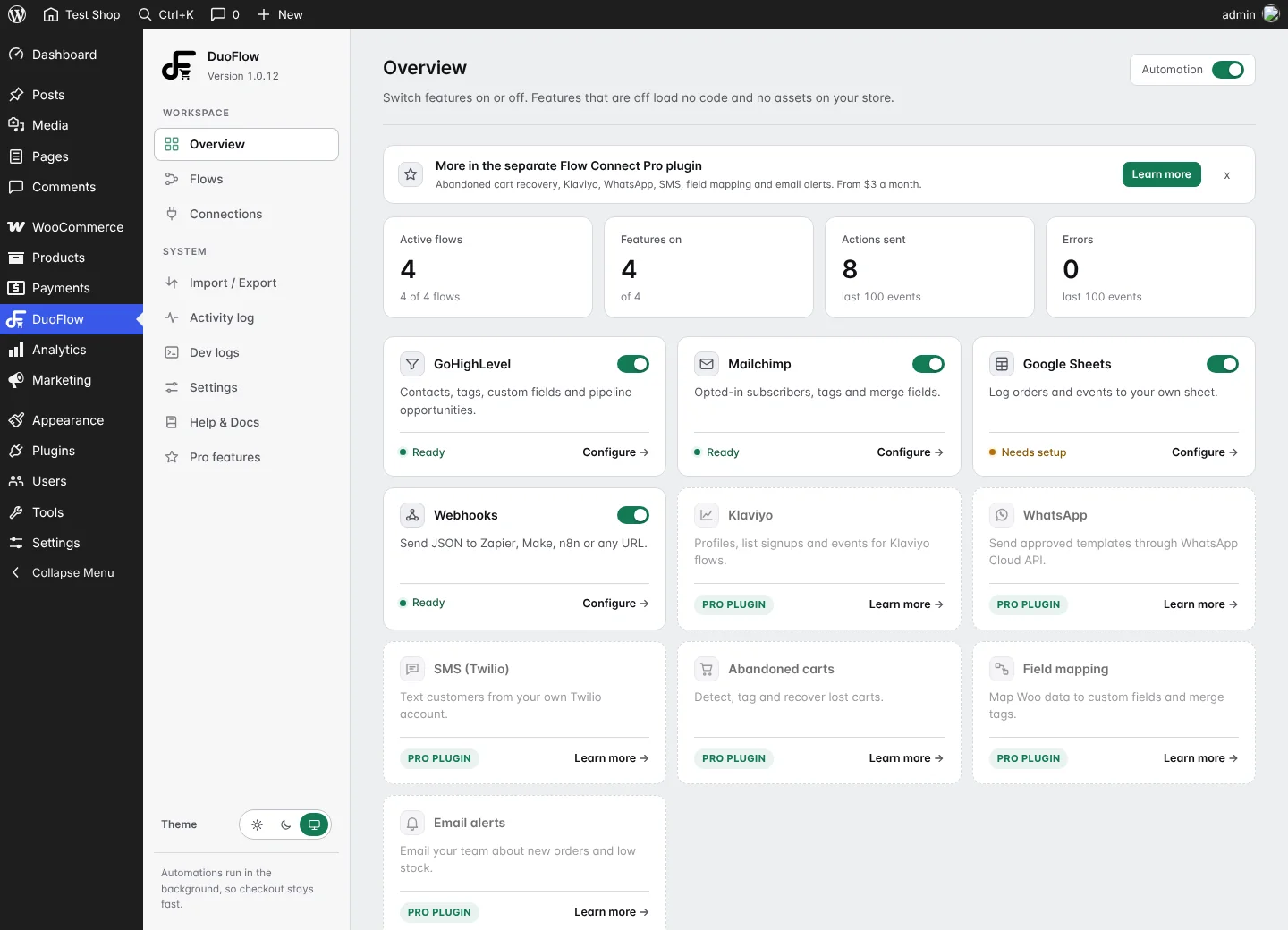
DuoFlow for WooCommerce is a free plugin on the WordPress.org plugin directory. It is the free edition of WooFlow Connect, built by DuoPlus. It gives you a visual flow builder inside your WordPress dashboard and connects WooCommerce to:
What you get in the free plugin:
- A visual When, Only if, Then do flow builder.
- Nine store triggers and seven conditions (full list further down).
- Ready made flow presets you can switch on in one click.
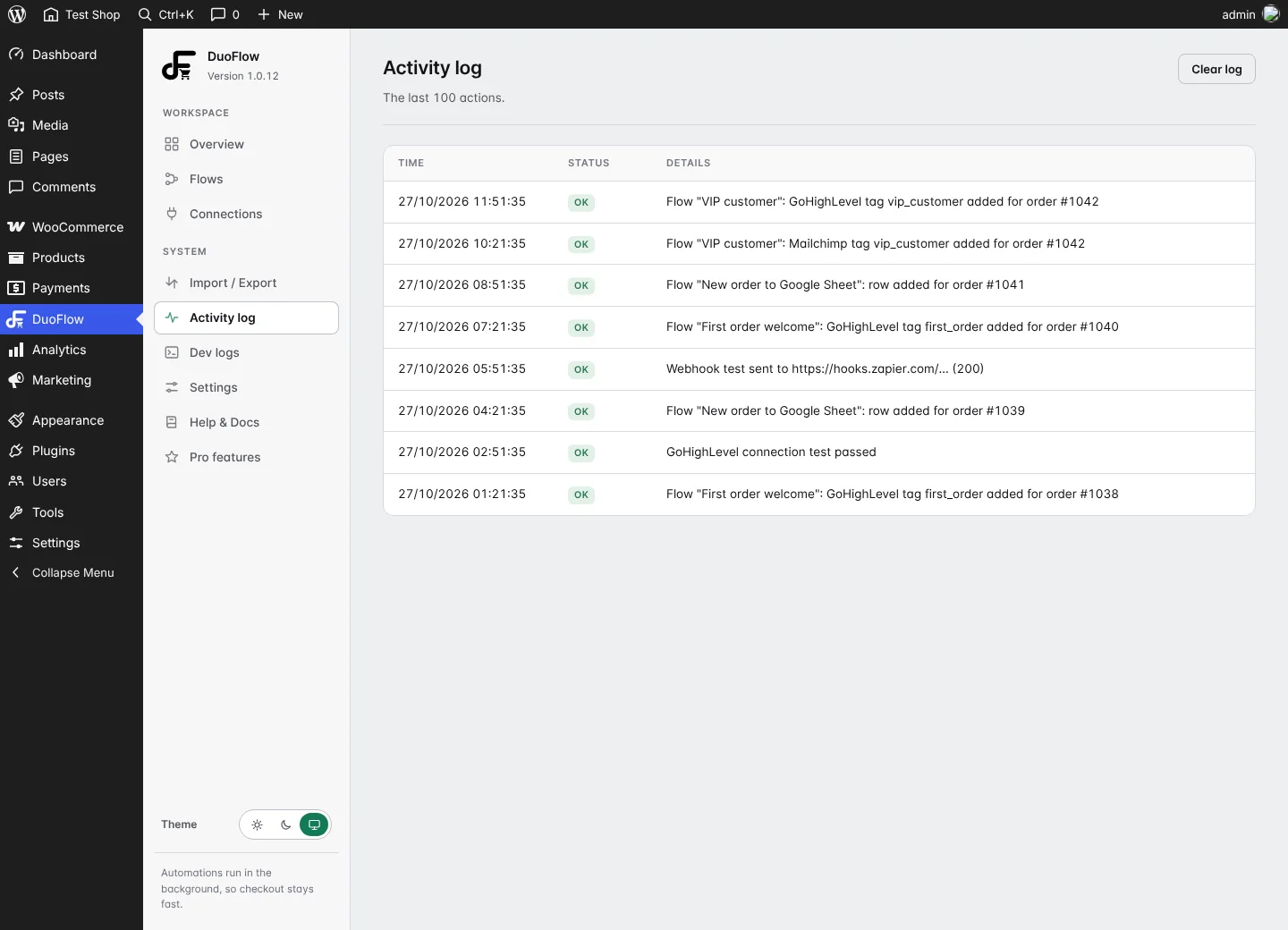
- An activity log and a developer log so you can see what ran and why something failed.
- Flow import and export, so you can copy a setup to another store.
- No account on our website, no license key and no trial period.
Get the free plugin on WordPress.org
How to automate WooCommerce: your first flow in 10 minutes
This is the whole process. Every integration later in this guide uses the same steps.
Install the plugin
In WordPress go to Plugins, Add New, search for DuoFlow for WooCommerce, then click Install Now and Activate. WooCommerce must already be active.
Switch on a feature
Open DuoFlow in the admin menu. On the Overview screen, switch on the tool you want to use: GoHighLevel, Mailchimp, Google Sheets or Webhooks. Features that are off load no code on your store.
Add your credentials
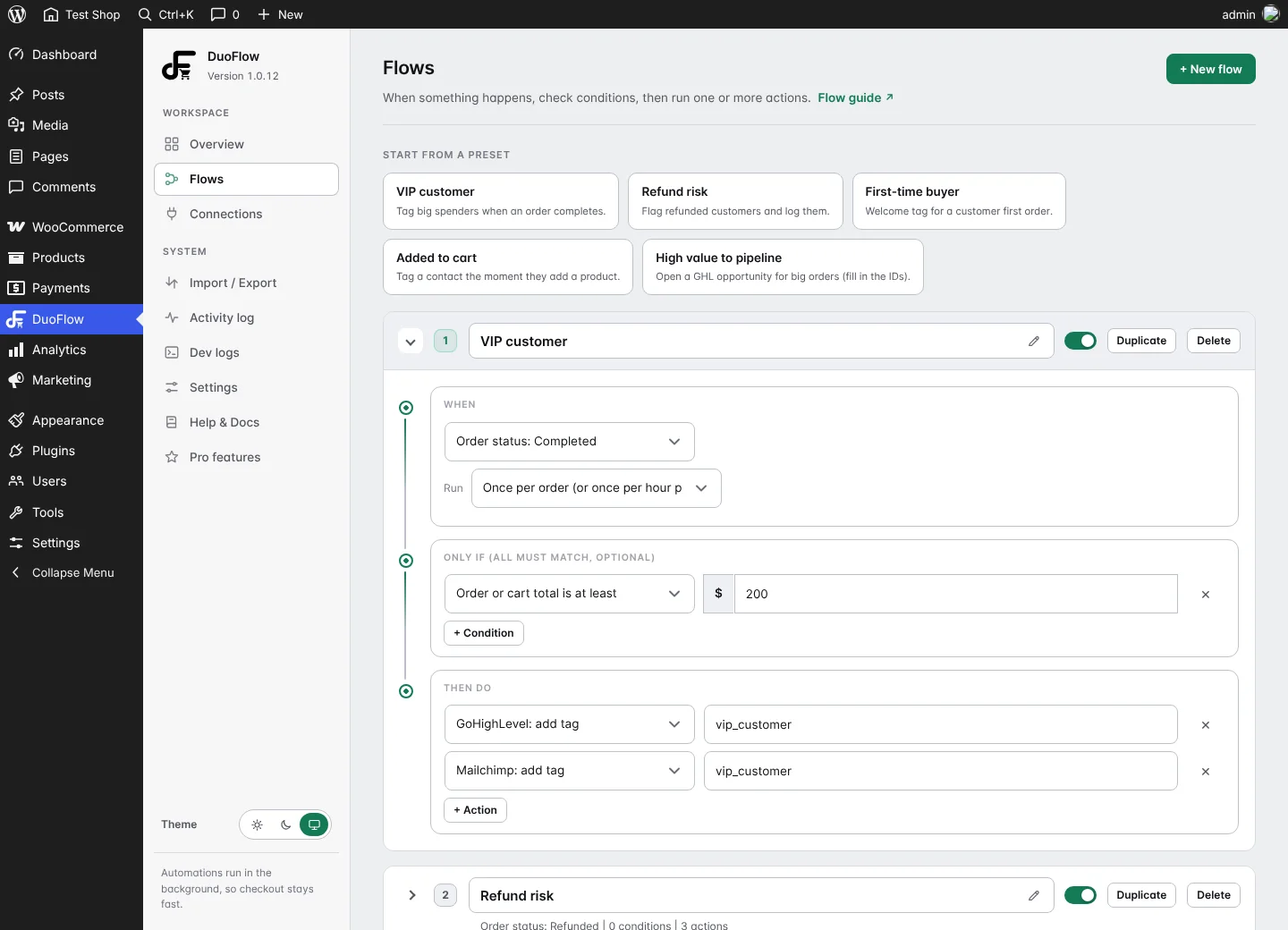
Open Connections, enter the key or URL for that tool and press Test connection. Credentials are encrypted in your database and only sent to the service they belong to.
Build the flow
Open Flows and pick a preset or press New flow. Choose a trigger, add optional conditions and add one or more actions. Save.
Test it with a real order
Place a test order on your store, then open the Activity log. Every action shows whether it worked, with the error message if it did not.
Connect WooCommerce to GoHighLevel (GHL)
GoHighLevel, usually shortened to GHL (and also known as HighLevel), is a popular CRM and marketing platform for agencies and local businesses. Out of the box, a WooCommerce store and a GoHighLevel account do not talk to each other, so buyers never become contacts, and your GHL workflows never start. The search terms people use for this problem include WooCommerce GoHighLevel integration, GHL WooCommerce integration, HighLevel WooCommerce and WordPress plugin to connect GHL to WooCommerce. A connector plugin is the simplest answer.
What the GoHighLevel connection can do
- Create or update a contact for every order, with name, email, phone and country from the order.
- Add or remove tags such as
vip_customer,first_orderoruser_added_to_cart. - Open an opportunity in a pipeline for high value orders.
Tags are the key. Almost everything in GHL, including workflows, smart lists and campaigns, can start from a tag. When WooCommerce adds the tag, your existing GHL automations run by themselves.

How to connect GoHighLevel to WooCommerce
Create a Private Integration in HighLevel
In your HighLevel sub-account, create a Private Integration (look under Settings, Private Integrations; menu names can change) and give it access to contacts, tags and, if you want pipelines, opportunities. Copy the token once it is created.
Find your Location ID
The Location ID identifies the sub-account. You can copy it from the sub-account settings.
Paste both into the plugin
Go to DuoFlow, Connections, GoHighLevel, paste the token and the Location ID and press Test connection.
Create a flow
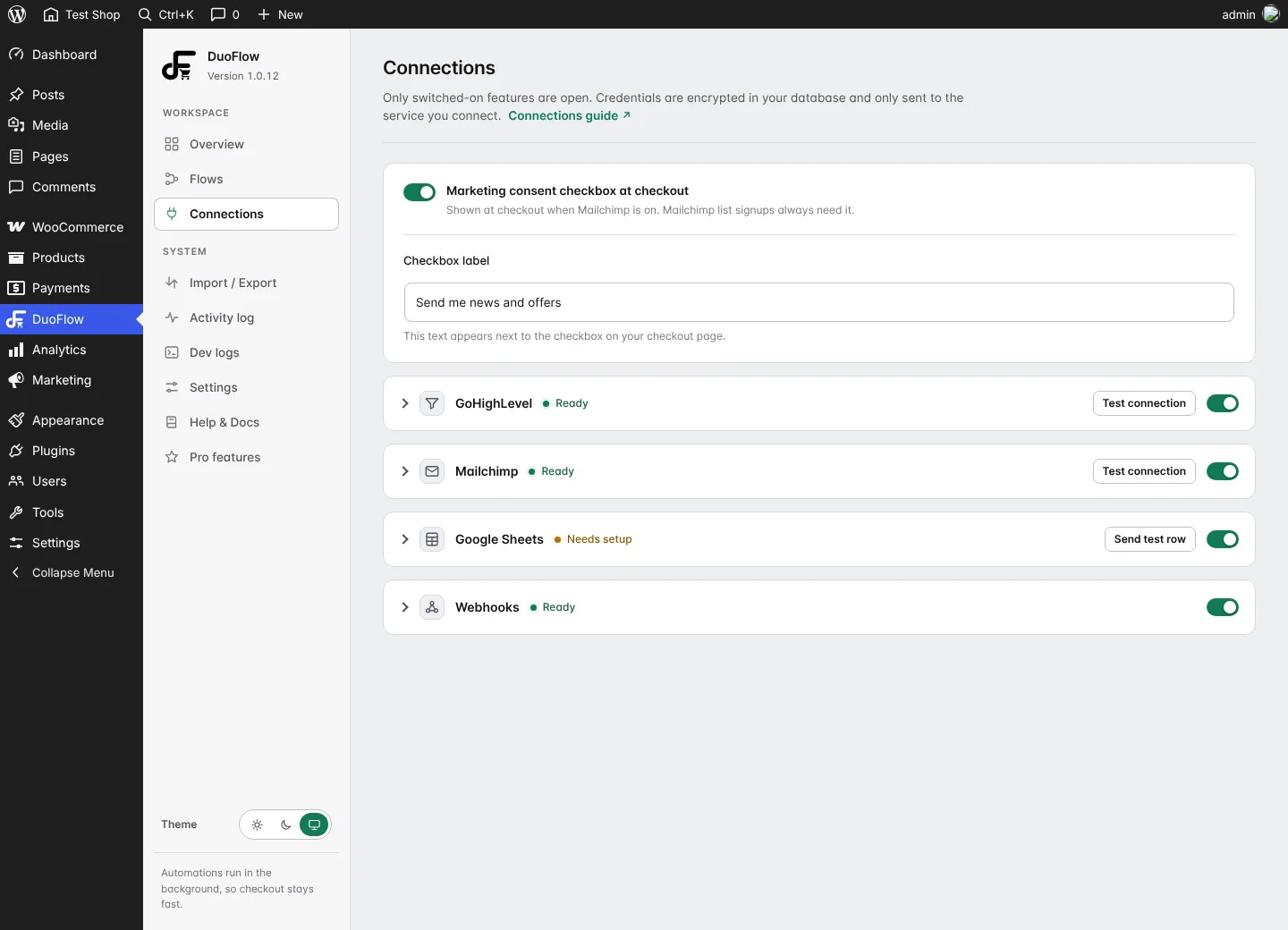
For example: When order completed, Then do GoHighLevel: add tag
customer. Save, place a test order and look for the contact and tag in GHL.
Four GoHighLevel and WooCommerce flows to copy
| Flow | When | Only if | Then do |
|---|---|---|---|
| VIP customer | Order completed | Order total is at least $200 | Add GHL tag vip_customer |
| First time buyer | Order processing | First order | Add GHL tag first_order to start a welcome workflow |
| Cart interest | Customer adds a product to cart | None | Add GHL tag user_added_to_cart |
| High value to pipeline | Order completed | Order total is at least your threshold | Open a GHL opportunity in your sales pipeline |

Send WooCommerce orders to Google Sheets automatically
A spreadsheet is still the fastest way to give a bookkeeper, a fulfilment partner or a manager a live view of your orders. People search for this as WooCommerce Google Sheets integration, export WooCommerce orders to Google Sheets automatically or connect Google Sheets with WooCommerce.
The plugin does not ask you to sign in with Google or to create an API key. Instead it gives you a short Google Apps Script that lives in your own Google account. Nothing is stored on our side.

How to connect Google Sheets to WooCommerce
Open your Google Sheet
Create a new sheet, or open the one where you want the orders to appear.
Copy the script from the plugin
In DuoFlow, Connections, Google Sheets the plugin shows the script and a shared secret it generated for you. Paste the script into Extensions, Apps Script in your sheet.
Deploy it as a web app
In Apps Script choose Deploy, New deployment, Web app and publish it. Copy the web app URL.
Paste the URL back into the plugin
Press Send test row. A row should appear in your sheet within seconds.
Add an action to a flow
Use the Google Sheet: add row action in any flow, or switch on Log every order to add every order to an "Orders" tab.
Each row carries the customer name, email, phone, order details and the event name, so you can filter by event (for example only refunds) with a normal sheet filter.
Connect WooCommerce to Mailchimp
The WooCommerce Mailchimp integration search is one of the most common. The plugin adds customers to your Mailchimp audience and can add or remove Mailchimp tags, but only for customers who ticked the marketing consent checkbox at checkout. The checkbox is part of the plugin and the label is editable.
- Add a buyer to your audience: a Mailchimp tag action first adds a consenting customer to your audience, then applies the tag.
- Tag buyers by what they did, for example
vip_customerorfirst_order, and send each group a different campaign. - Remove a tag when something changes, for example after a refund.

Setup follows the same pattern as everything else: switch Mailchimp on, add your API key and audience in Connections, press Test connection, then build a flow.
WooCommerce webhooks: Zapier, Make, n8n and Discord
Webhooks are the universal connector. A flow action can send a JSON message to any https URL when something happens. That lets you reach thousands of tools without a dedicated integration, and it is the answer to WooCommerce webhook plugin, WooCommerce to Zapier and WooCommerce without Zapier fees searches: you can send events straight to Zapier, Make or n8n, or skip those platforms completely when a direct connection is enough.
- Default payload: event name, flow name, time and the order and customer details (email, name, phone, country, order total, products, coupons and more).
- Custom JSON: write exactly the message you need and insert values with placeholders such as
{email}and{order_total}. - Signed requests: set an optional secret and every request carries an HMAC-SHA256 signature, so the receiving service can verify the message came from your store.
- Discord: point the action at a Discord webhook URL and you get a readable message in your channel for new orders, refunds or failed payments.
{"email": "{email}", "total": "{order_total}", "order": "{order_id}"}
Four ways to automate WooCommerce (and which to choose)
There is more than one way to connect WooCommerce to other tools. Here is an honest comparison.
| Approach | Setup effort | Ongoing cost | Best for |
|---|---|---|---|
| Custom code (WooCommerce hooks) | High, needs a developer | Developer time and maintenance | Very specific needs that no tool covers |
| General automation platforms (Zapier style) | Medium | Usually priced by tasks or monthly plan | Connecting many different apps in one place |
| All in one marketing suites | Medium to high | Often a larger monthly subscription | Stores that want one big marketing platform |
| A dedicated WooCommerce connector plugin | Low, point and click | Free to start | Stores that mainly need orders, tags and rows sent to a few tools |
A dedicated connector plugin is the right fit when your goal is "when this happens in my store, update this tool". If you later need something unusual, you can still add a webhook to your flow and hand the event to any automation platform.
WooCommerce triggers and conditions you can use
Triggers (When)
- Customer adds a product to cart
- Order is placed (checkout)
- Order status: Processing (paid)
- Order status: Completed
- Order status: On hold
- Order status: Cancelled
- Order status: Refunded
- Order status: Failed
- New account is registered
Conditions (Only if)
- Order or cart total is at least an amount
- First order
- Returning customer
- Coupon used
- Product category
- Specific product
- Customer country
12 WooCommerce automation ideas to set up first
| # | Goal | Flow |
|---|---|---|
| 1 | Welcome new buyers | First order, then tag in GoHighLevel or Mailchimp to start a welcome sequence |
| 2 | Reward big spenders | Order total at least a limit, then tag vip_customer |
| 3 | Bring back repeat buyers | Returning customer, then tag for a loyalty campaign |
| 4 | Keep your books current | Every order, then add a row to Google Sheets |
| 5 | Spot refund risk | Order refunded, then tag the contact and log the event |
| 6 | Warm up shoppers | Customer adds a product to cart, then tag for a retargeting list |
| 7 | Sales pipeline for large orders | Order total at least a threshold, then open a GHL opportunity |
| 8 | Coupon campaign tracking | Coupon used, then tag the coupon name for later segmentation |
| 9 | Category interest | Product category, then tag for category specific emails |
| 10 | International orders | Customer country, then route to a regional list or sheet |
| 11 | Alert the team | Failed or on hold order, then post to a Discord channel via webhook |
| 12 | Feed any other tool | Any trigger, then send JSON to Zapier, Make or n8n |
When you need more: abandoned carts, Klaviyo, WhatsApp and SMS
The free plugin handles the core automations above. WooFlow Connect Pro is a separate plugin, sold on wooflowconnect.com for $3 a month per store with a 7 day free trial. It adds:
- WooCommerce abandoned cart recovery: detect lost carts, tag the contact and send the recovery link.
- Klaviyo: profiles, list signups and events.
- WhatsApp: send approved templates through the WhatsApp Cloud API.
- SMS: text customers from your own Twilio account.
- Field mapping: copy order data into GoHighLevel custom fields and Mailchimp merge fields.
- Email alerts: tell your team about new orders with your own SMTP account.
Your flows and settings carry over if you switch, and the free plugin does not need Pro to keep working. See the free versus Pro comparison for details.
Speed, privacy and security
- Your checkout stays fast. Actions run in the background through Action Scheduler, so customers never wait for a CRM to answer.
- Light by design. Features that are switched off load no code, and the dashboard assets load only on the plugin's own screen.
- Encrypted credentials. API keys are encrypted in your database and only sent to the service they belong to.
- No data sent to us. The free plugin does not contact the DuoPlus website and does not collect usage statistics. Data goes only to the services you connect and switch on.
- Privacy tools. It adds suggested text to the WordPress privacy policy guide and registers a personal data eraser for its activity log.
Troubleshooting WooCommerce automations
| Problem | What to check |
|---|---|
| No contact appears in GoHighLevel | Press Test connection. Confirm the token has contact access and the Location ID belongs to the same sub-account. Then read the activity log for the error message. |
| The tag is not added | Check that the flow is switched on, that its conditions match the order (for example the total) and that the trigger status is the one your orders actually reach. |
| No rows in Google Sheets | Press Send test row. Make sure the Apps Script is deployed as a web app and that you pasted the web app URL, not the editor URL. |
| A webhook fails | The activity log shows the HTTP status the receiving service returned. Use an https URL and, if you set a secret, verify the signature on the receiving side. |
| Mailchimp does not add a customer | The customer must have ticked the consent checkbox at checkout. Without consent nothing is sent. |
The Dev logs screen shows more detail when you need it. Our documentation walks through every screen.
WooCommerce automation FAQ
What is WooCommerce automation?
WooCommerce automation means your store runs rules for you. When an event happens, such as a new order, a refund or an item added to the cart, a flow runs and updates tools like GoHighLevel, Mailchimp, Google Sheets or any webhook. Each rule has a trigger (When), optional conditions (Only if) and actions (Then do).
Is there a free WooCommerce automation plugin?
Yes. DuoFlow for WooCommerce is free on the WordPress.org plugin directory. It includes a visual flow builder, GoHighLevel, Mailchimp, Google Sheets and webhook connections, presets, an activity log and flow import and export. It needs no account, license key or trial period.
How do I connect WooCommerce to GoHighLevel (GHL)?
Install a connector plugin such as DuoFlow for WooCommerce, create a Private Integration in your HighLevel sub-account, then paste the token and Location ID into the plugin under Connections and press Test connection. After that, build a flow, for example order completed then add a tag.
Is there a WordPress plugin that connects GHL to WooCommerce?
Yes. DuoFlow for WooCommerce connects WooCommerce to GoHighLevel from inside WordPress. It can create or update contacts, add or remove tags and open opportunities in a pipeline.
Can I tag GoHighLevel contacts automatically when someone buys?
Yes. Use a flow with a trigger such as Order completed and the action GoHighLevel: add tag. You can add conditions, for example only when the order total is at least $200, and then start any GHL workflow from that tag.
Can WooCommerce create GoHighLevel opportunities in a pipeline?
Yes. The GoHighLevel: create opportunity action opens an opportunity in the pipeline you choose, for example for high value orders.
How do I send WooCommerce orders to Google Sheets automatically?
Switch on Google Sheets in the plugin, copy the short Apps Script it provides into your own sheet, deploy it as a web app and paste the web app URL back into the plugin. Then add the Google Sheet: add row action to a flow, or switch on Log every order.
Do I need a Google API key or Google sign in for Google Sheets?
No. The plugin uses a Google Apps Script that runs in your own Google account, so there is no Google sign in and no API key stored in the plugin.
How do I connect WooCommerce to Mailchimp?
Switch on Mailchimp, add your API key and audience under Connections, press Test connection and create a flow with a Mailchimp add tag action. Customers are added only if they ticked the marketing consent checkbox at checkout.
Do I need Zapier or Make to automate WooCommerce?
Not for the integrations the plugin includes. GoHighLevel, Mailchimp and Google Sheets connect directly. For everything else you can send a signed JSON webhook to Zapier, Make, n8n, Discord or any https URL.
Can I send WooCommerce orders to Discord?
Yes. Add a webhook action and paste a Discord webhook URL. The plugin sends a readable message for the event, or you can write your own custom JSON.
Which WooCommerce events can start a flow?
Customer adds a product to cart, order placed, and order status changes to processing, completed, on hold, cancelled, refunded or failed, plus new account registered.
Will automation slow down my WooCommerce checkout?
No. Actions are queued and run in the background through Action Scheduler, and features you switch off load no code on your store.
Does it work with HPOS and the WooCommerce Cart and Checkout blocks?
Yes. Compatibility with High-Performance Order Storage and the Cart and Checkout blocks is declared by the plugin.
Is my customers' data safe?
API keys are encrypted in your database and only sent to the service they belong to. The free plugin does not contact the DuoPlus website or collect usage statistics. You remain responsible for collecting consent and following the privacy laws that apply to your store.
Can I recover abandoned carts with this?
Abandoned cart recovery is part of WooFlow Connect Pro, a separate plugin. It detects lost carts, tags the contact and sends the recovery link.
What does WooFlow Connect Pro add and what does it cost?
Pro adds abandoned cart recovery, Klaviyo, WhatsApp, SMS through Twilio, field mapping and email alerts. It costs $3 a month per store with a 7 day free trial. The free plugin keeps working without it.
What if a flow does not work?
Open the Activity log in the plugin. Every action shows whether it worked and includes the error message if it failed. Use Test connection or Send test row on the Connections screen, and check the Dev logs screen for more detail.
Start automating your WooCommerce store today
WooCommerce automation does not have to mean expensive tools or a developer. Start with one flow, such as tagging first time buyers in GoHighLevel or logging every order to Google Sheets, check the activity log and build from there.
Free on WordPress.org
DuoFlow for WooCommerce includes GoHighLevel, Mailchimp, Google Sheets and webhooks. No account needed.